Install guide
Add your computer to the Talivio Power network. The agent only connects outwards and opens no port; while you use the computer you can mark it busy with one click.
Current agent 0.2.1 · every release is signed, the agent updates itself
1. Get an enrolment code
An enrolment code has 12 characters (like ABCD-EFGH-JKMN), is valid for 24 hours and works once on one computer. A Talivio admin gives it to you (talivio.com admin → Monitoring → Power Gateway → Add machine).
2. Open PowerShell as administrator
Right-click the Start button (or Windows + X) and choose "Terminal (Admin)" or "Windows PowerShell (Admin)". Answer "Yes" when Windows asks whether to allow changes. The window title must say "Administrator".
3. Paste the command and press Enter
Copy the command, right-click in the PowerShell window to paste it and press Enter. The agent is downloaded, the computer measured and two scheduled tasks set up. It takes half a minute.
& ([scriptblock]::Create((Invoke-WebRequest -UseBasicParsing https://power-gateway.talivio.com/install.ps1).Content)) {CODE}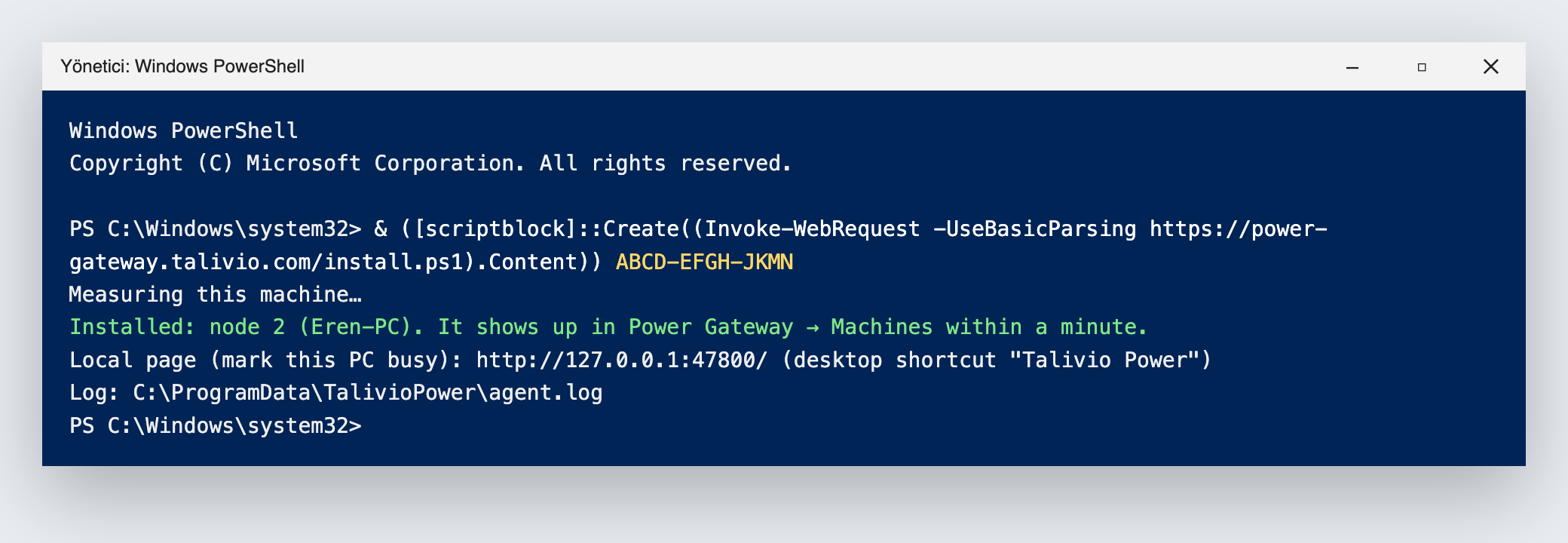
4. Done
When you see "Installed", the computer is in the network and shows up in the admin panel within a minute. A "Talivio Power" shortcut appears on the desktop: open it to mark the computer busy. The agent starts by itself whenever the computer starts.
If the command fails: manual download
Download the .exe with the button below. In an administrator PowerShell, go to your Downloads folder and run:
Download · Windows x64 · 0.2.1cd $env:USERPROFILE\Downloads; .\talivio-power-windows-amd64.exe install --url https://power-gateway.talivio.com --code {CODE}If you double-click the file Windows may say "Windows protected your PC"; do not double-click it, run it from PowerShell with the command above.
To remove it (administrator PowerShell):
& "C:\ProgramData\TalivioPower\talivio-power.exe" uninstall2. Open Terminal
Press Command + Space, type "Terminal" and press Enter. No administrator password is needed: the agent runs as the user who stays signed in.
3. Paste the command and press Enter
Copy the command, paste it into Terminal with Command + V and press Enter.
curl -fsSL https://power-gateway.talivio.com/install.sh | sh -s -- {CODE}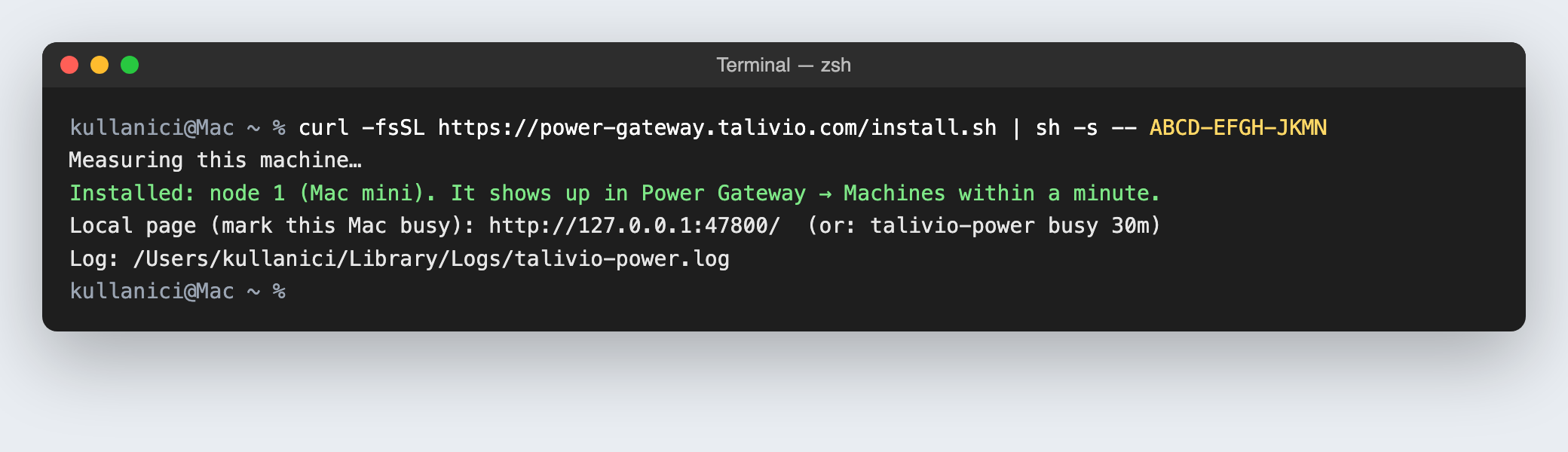
4. Done
When you see "Installed", the Mac is in the network. To mark it busy open http://127.0.0.1:47800/ in a browser or type "talivio-power open" in Terminal. The agent starts by itself whenever the Mac starts.
If the command fails: manual download
Download arm64 for Apple Silicon (M1–M4) or amd64 for an Intel Mac. macOS quarantines files a browser downloads; in Terminal:
cd ~/Downloads && xattr -d com.apple.quarantine talivio-power-darwin-arm64; chmod +x talivio-power-darwin-arm64 && ./talivio-power-darwin-arm64 install --url https://power-gateway.talivio.com --code {CODE}To remove it:
talivio-power uninstall2. Run the command
As root or with sudo, the agent is installed as a systemd service. Without root, run it without sudo: the agent installs in user mode and the user's crontab keeps it running.
curl -fsSL https://power-gateway.talivio.com/install.sh | sudo sh -s -- {CODE}curl -fsSL https://power-gateway.talivio.com/install.sh | sh -s -- {CODE}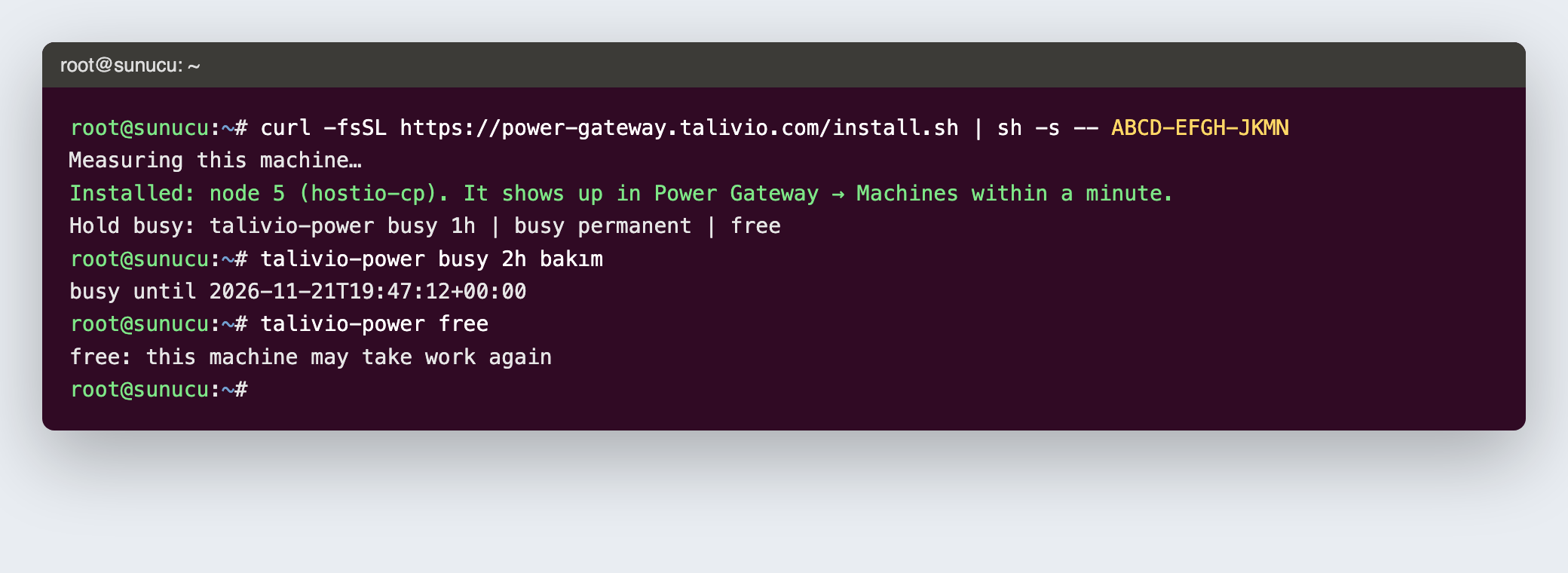
3. Marking it busy
On the server: "talivio-power busy 2h" (10m, 30m, 1h, 2h, 3h or permanent), and "talivio-power free" when you are done.
To remove it:
sudo talivio-power uninstallMarking the computer busy
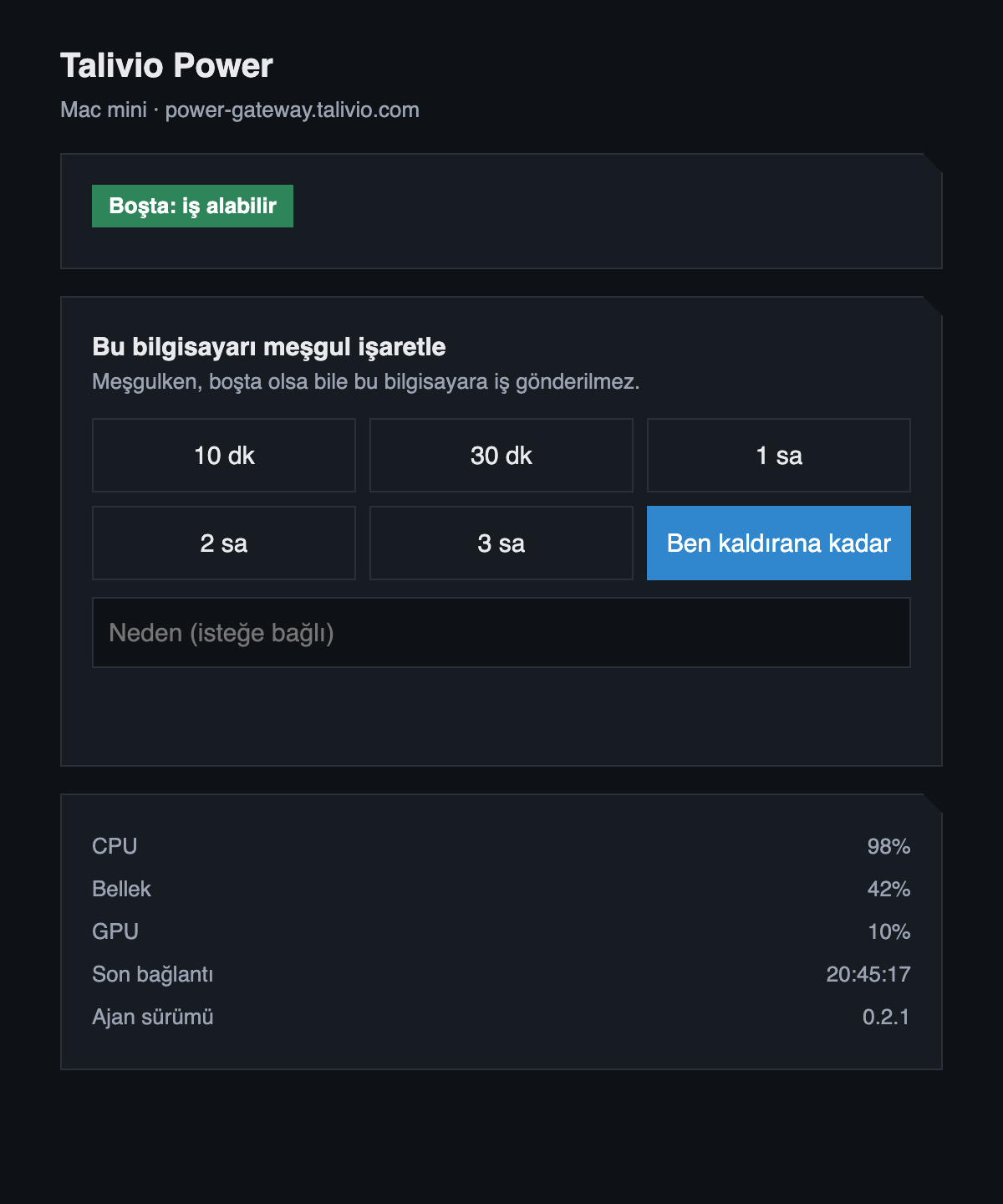
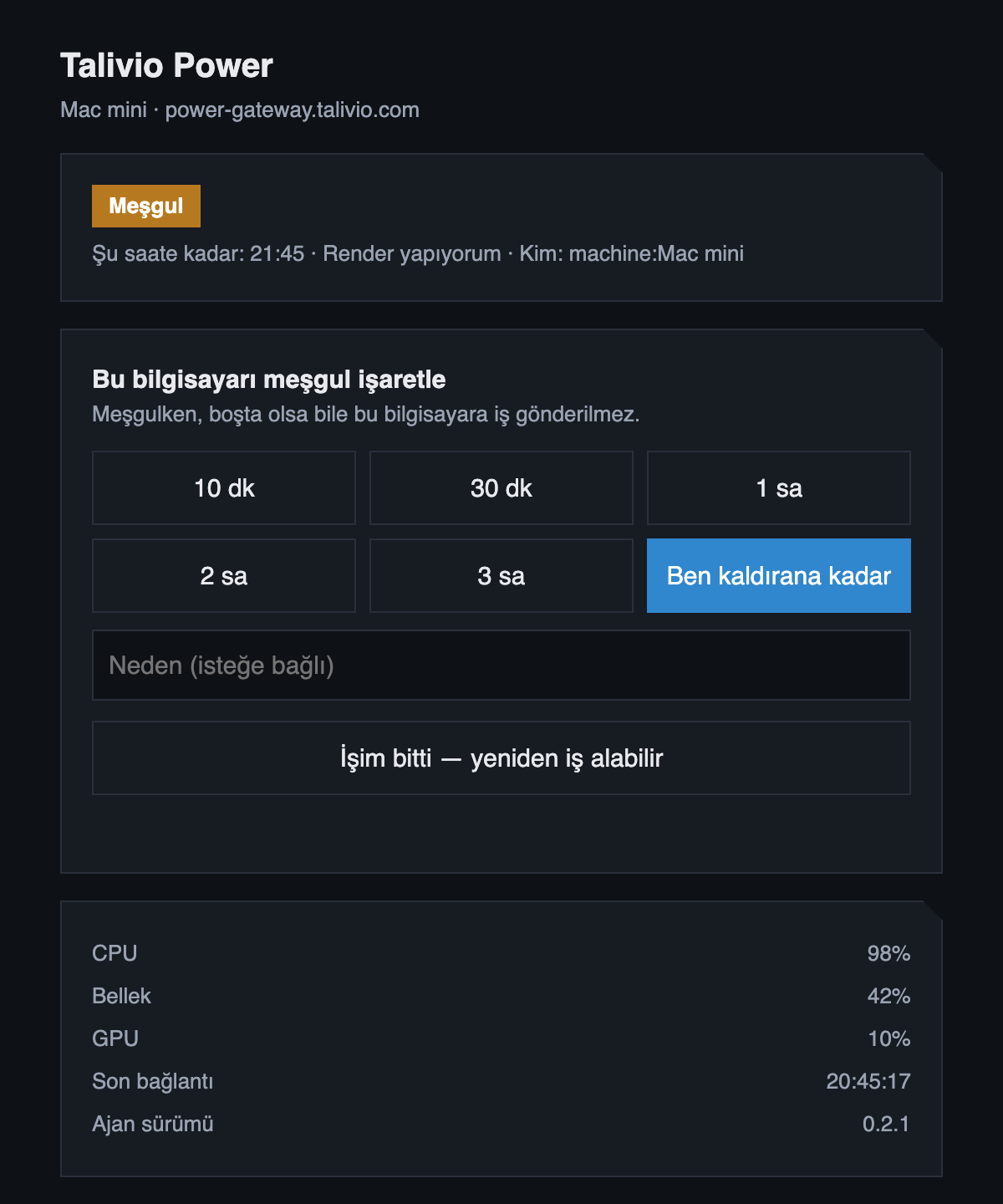
When you need the computer, or it should take no work even when idle, choose a time on the local page: 10 minutes, 30 minutes, 1, 2 or 3 hours, or "Until I release it". Add a reason if you like; admins see it. When you are done, press "I'm done". Admins can do the same from the talivio.com admin panel.
Troubleshooting
- Status: talivio-power status (Windows: & "C:\ProgramData\TalivioPower\talivio-power.exe" status).
- Log file: macOS ~/Library/Logs/talivio-power.log · Windows C:\ProgramData\TalivioPower\agent.log · Linux journalctl -u talivio-power (user mode: ~/.local/share/talivio-power/agent.log).
- If the local page says "Cannot reach the gateway", check the internet connection; the agent carries on by itself when it is back.
- "The code is wrong, used or expired": the code was used or is older than 24 hours; ask an admin for a new one.
- Updates are automatic: the agent checks the new release's signature itself, then switches. Nothing to do.